
Install an app on a server
An app runs on one of your instances, so installing one means picking a server, choosing what to run, and deploying it. GalaxyGate handles the setup from an App Template, so you get a working install without configuring the software by hand.
This page walks through a deployment from start to finish, then shows how to start, stop, and restart the app afterward.
Before you start
If the app uses a private container image, save your registry credentials first. GalaxyGate needs a username and access token to pull a private image, and you add those under Security in the Registries page.
Deploy the app
Open the instance you want to run the app on, then select the Apps tab. This tab lists the apps already on that server and is where you deploy a new one. Select New App, pick an App Template, configure it, and deploy it onto the server.
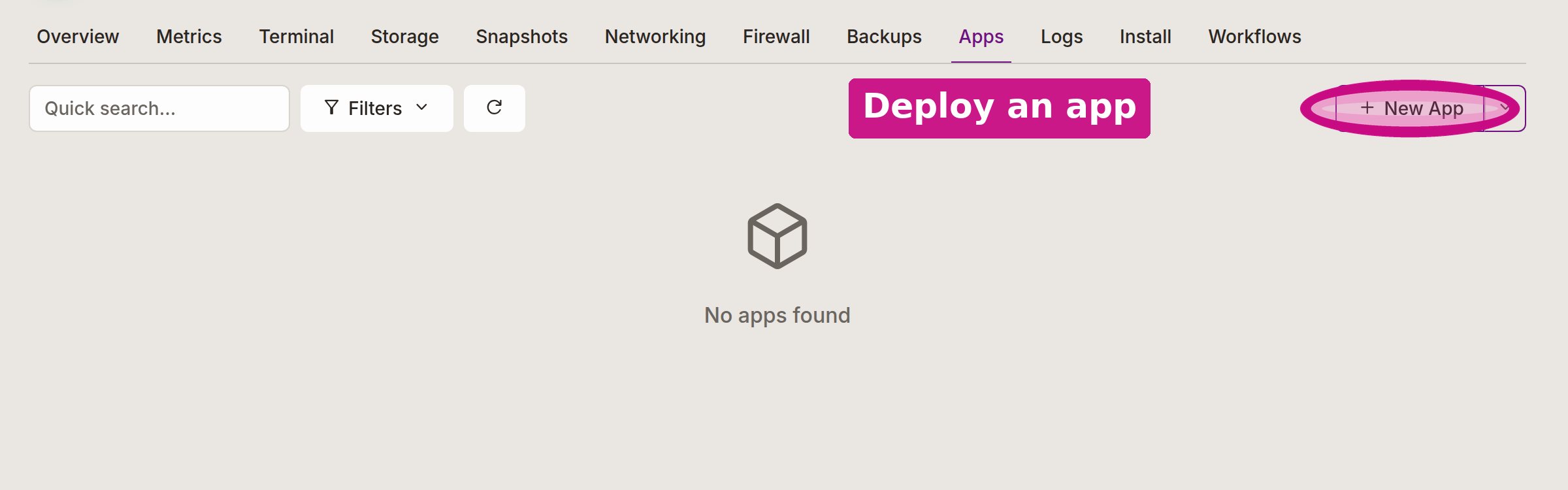
You can also start the same flow from the workspace Apps page in the sidebar, which has its own New App button.
The steps are the same either way:
- Choose an App Template.
- Configure the app.
- Deploy it onto the instance.
Once the deployment finishes, the app appears in the list on the Apps tab with its status, as shown above.
Private image
If the template pulls a private container image and the deployment does not start, check that your registry credentials are saved under Security in Registries.
Manage a running app
After an app is deployed, you control it from the Apps tab. Each app can be started, stopped, and restarted.
- Start brings up an app that is currently stopped.
- Stop shuts a running app down. It stays deployed on the server so you can start it again later.
- Restart stops and starts the app in one step. Use it to apply a change or to clear a stuck state.
Related
- Registry credentials for pulling private container images.
- Software and apps overview for where apps live and what you can do with them.