
Create a server
Creating an instance is a single call to your workspace's instances endpoint. It returns a workflow right away and provisions the machine in the background, so you create the server first and then poll until it is running.
POST /v1/workspaces/{wid}/instancesMinimum request
Four fields are required: name, specs, ipv4, and ipv6.
curl -X POST "https://api.galaxygate.net/v1/workspaces/$WORKSPACE_ID/instances" \
  -H "Authorization: Bearer $GALAXYGATE_TOKEN" \
  -H "Content-Type: application/json" \
  -d '{
    "name": "web-01",
    "specs": {
      "plan": 12,
      "cpu": 2,
      "memory": 4096,
      "storage": 80000
    },
    "ipv4": { "enabled": true, "ddos": false },
    "ipv6": { "enabled": true },
    "start": true
  }'
Required fields
name(string): the instance name.specs(object): the machine's size. See below.ipv4(object): IPv4 settings. See below.ipv6(object): IPv6 settings, same shape asipv4.
specs: how big the machine is
The specs object sizes and bills the instance:
plan(integer): the plan ID to bill against and size from.cpu(integer): number of vCPU cores.memory(integer): memory in MiB. For example,4096is 4 GB.storage(integer): disk size in MB.
Most deployments pick a plan and let it set the sizing. The cpu, memory, and storage fields let you be explicit when you need to be.
ipv4 and ipv6
Both address objects take the same three fields:
enabled(boolean): whether to assign an address of this family.ddos(boolean): enable DDoS protection on the address.existing(integer): attach an existing IP by ID instead of allocating a new one.
Optional fields you will commonly use
template(integer): the template (OS image) ID to install.start(boolean): start the instance immediately after it is created.boot(string): boot mode, eitherDISKorISO.iso(integer): the ISO ID to attach, used withbootset toISO.cloud_init(string): a cloud-config YAML string to run on first boot. See Run code with cloud-init.region(string): deploy into a specific region.node(integer): pin the instance to a specific node.vpc(integer): attach the instance to a VPC.backup(integer): restore from a backup ID.
Do not send fields that are not listed above. The wizard in the panel sets exactly these values under the hood.
Poll until it is running
The call returns a workflow, which means provisioning has started but not finished. Poll the instance until it reports that it is running:
curl "https://api.galaxygate.net/v1/instances/$INSTANCE_ID" \
  -H "Authorization: Bearer $GALAXYGATE_TOKEN"
Give a fresh instance a minute to finish booting before your first connection attempt. If you are creating many servers in a loop and start seeing 429 Too Many Requests, slow your polling down and back off.
In the panel
On the Instances page in dash.galaxygate.net, the New Instance button opens a wizard: choose a region, choose an instance from the plan table, then confirm. The wizard walks the same fields shown above and submits when you click Create Instance.
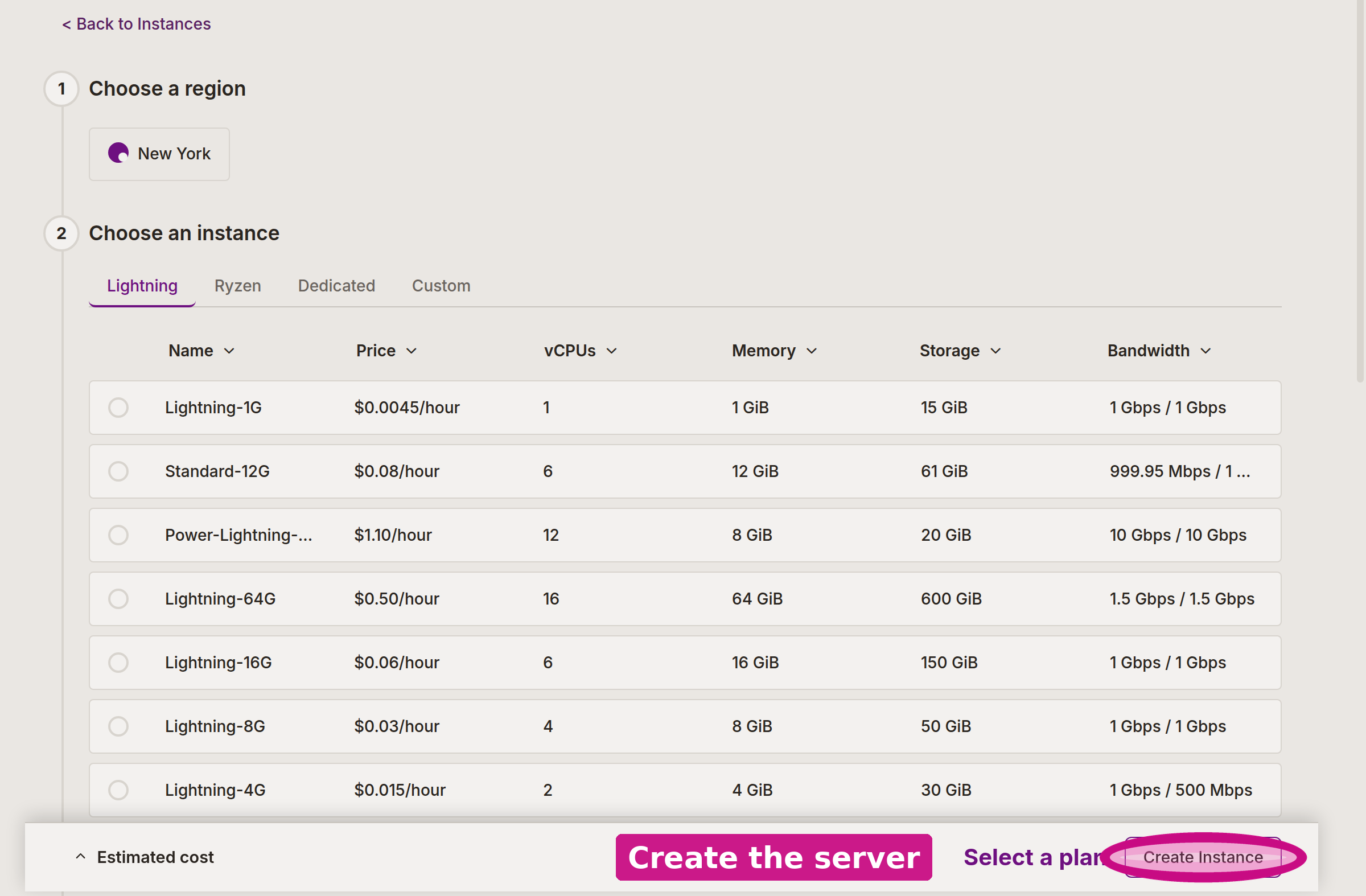
The form does the same thing as the API request on this page.
Tear it down
Deleting an instance is also a single call. It returns a workflow and runs in the background, and it is permanent:
DELETE /v1/instances/{id}curl -X DELETE "https://api.galaxygate.net/v1/instances/$INSTANCE_ID" \
-H "Authorization: Bearer $GALAXYGATE_TOKEN"This cannot be undone
Deleting an instance destroys the server and its disk. There is no recovery afterward. Make sure you have a snapshot or backup first if you might want the data back.
If a termination is still pending and you change your mind, cancel it:
curl -X POST "https://api.galaxygate.net/v1/commands/cancel-termination" \
  -H "Authorization: Bearer $GALAXYGATE_TOKEN" \
  -H "Content-Type: application/json" \
  -d '{ "instance": 101 }'
Next step
Power controls to start and stop the server, or Run code with cloud-init to have it configure itself at boot.