
SSH keys
An SSH key replaces the password when you log into a server. You keep the private half on your computer and give GalaxyGate the public half, and that public key is installed on your servers so your machine is trusted the moment it boots. From a security standpoint this is stronger than a password: there is no secret to guess or reuse, and you control exactly which keys are trusted.
Manage your keys from Security in the sidebar, then SSH Keys. The page lives at the /ssh route.
How keys work in your workspace
- Workspace scoped. A key you add belongs to your workspace, so every server you create in that workspace can trust it. You do not add a key per server.
- They replace passwords. With your key installed, you log in without typing a password, which removes the weakest link in server access.
- Each key shows a name and fingerprint. An uploaded key is listed with the name you gave it, who uploaded it, and its fingerprint, so you can tell keys apart and confirm a key is the one you expect.
- You can remove a key. Take a key off the list when it should no longer be trusted, for example when someone leaves or a laptop is retired.
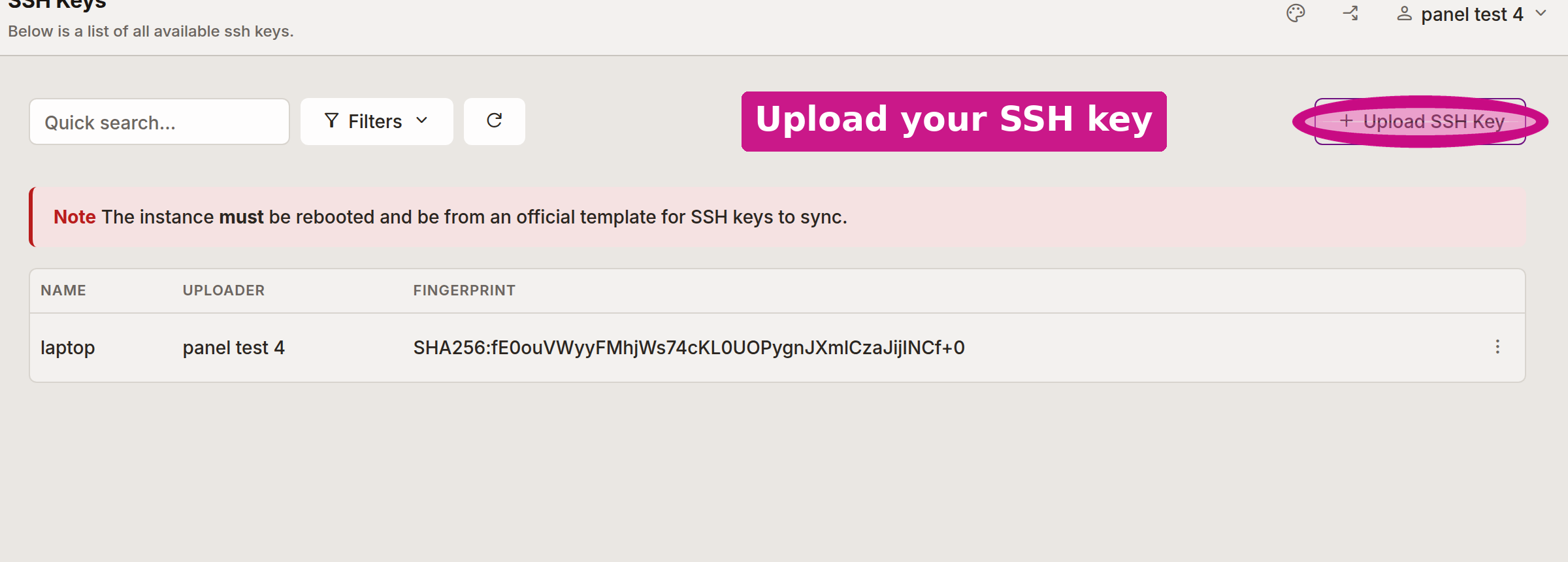
The Upload SSH Key button is circled above.
Create a key first
To upload a key you need one to paste. If you do not have a key yet, generate one on the getting-started page, which includes an in-browser generator that runs entirely on your machine and never uploads the private half. Come back here to add the public key once you have it.
Put a key on a server you already have
Uploading a key trusts it on new servers. To push your keys onto a server that already exists, open that instance, use the Advanced menu, and choose Sync SSH Keys. The server has to be rebooted and running an official template for the sync to take.
Remove keys you no longer trust
The list is your trust boundary. If a key belongs to a device you no longer control, remove it here so it cannot be used to reach servers that already trust it, then sync your remaining keys to those servers.
Related
- Generate an SSH key to create a key with the in-browser generator.
- Security overview