
Generate an SSH key
An SSH key is how you log into a server without a password. You keep the private half on your computer; you give GalaxyGate the public half, and it gets installed on every server you create so your machine is trusted the moment it boots.
Do this once, before you create your first server.
Make a key right here
Type the label you want on the key (your email is the convention) and generate one. This runs entirely in your browser using ed25519, the modern default. Nothing is uploaded, sent, or stored.
Prefer your terminal? Run ssh-keygen -t ed25519 -C "you@example.com" and press Enter through the prompts. Your public key is then in ~/.ssh/id_ed25519.pub.
Add the public key to the panel
Open SSH Keys in the control panel (it lives under Security in the sidebar) and select Upload SSH Key. Give the key a name so you can recognize it later, paste the public key into the field, and save.
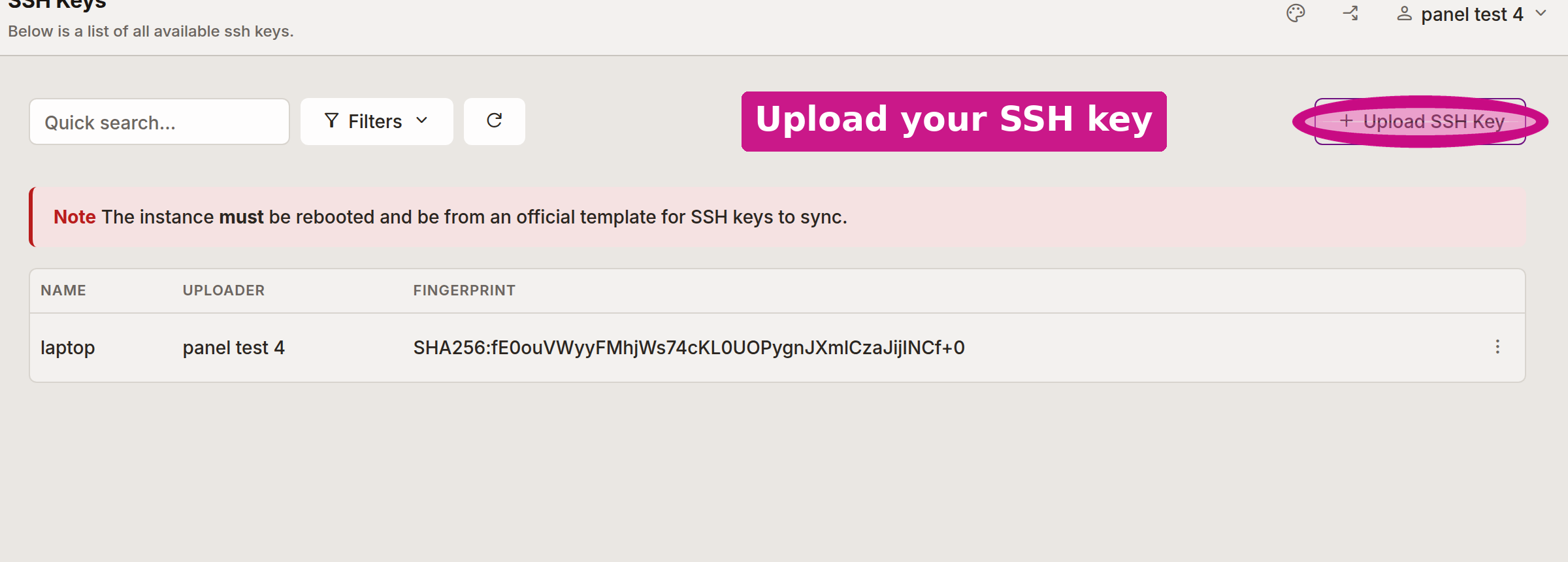
The key is saved to your workspace, so every server you create there trusts it automatically.
Already have a key?
If ~/.ssh/id_ed25519.pub or ~/.ssh/id_rsa.pub already exists on your computer, reuse it. Print it with cat ~/.ssh/id_ed25519.pub and paste that whole line into the panel. You do not need a new key per server.
Put a key on a server you already have
Uploading a key only affects new servers. To push your keys onto a server that already exists, open it and use Advanced, then Sync SSH Keys. The server has to be rebooted and running an official template for the sync to take.
Next step
Your key is ready. Create a server with this key selected, then open a shell.