
Terminal
The Terminal tab on an instance shows the server’s screen in your browser, as if a monitor and keyboard were plugged in. Use it when SSH, networking or the server’s own firewall is broken. The instance must be running.
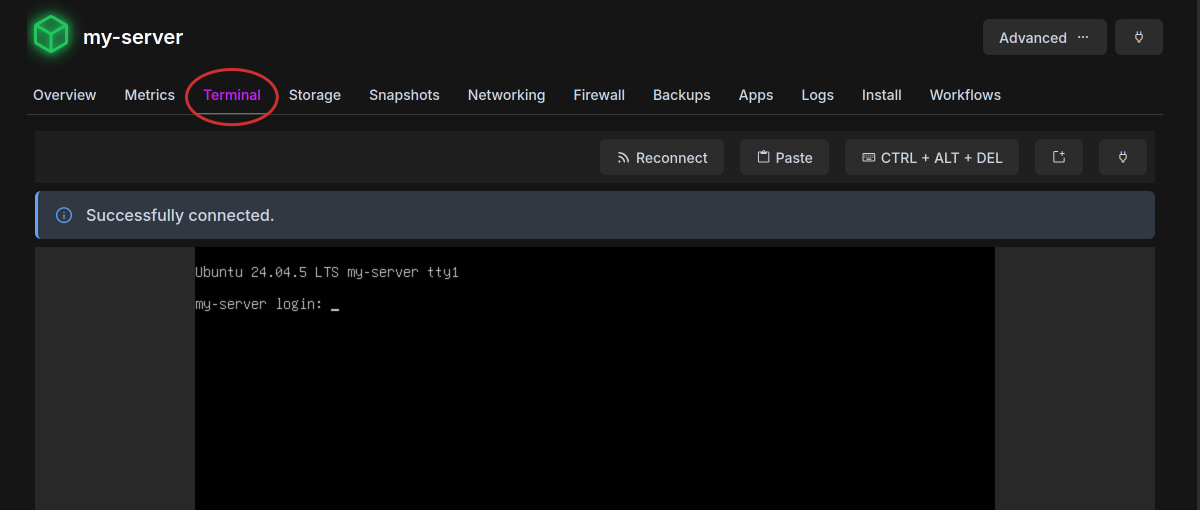
Log in with the operating system’s username (root, or Administrator on Windows) and password. If you do not know the password, open “Advanced” and hit “Reset Password”.
Controls
Section titled “Controls”| Control | What it does |
|---|---|
| Reconnect | Opens a new connection if the screen freezes or shows “Failed to connect to VNC” |
| Paste | Types text into the console. See Pasting text |
| CTRL + ALT + DEL | Sends that key combination after you confirm. On some systems it restarts the server |
| Open in a new window | Moves the console to its own window. The tab reconnects when you close it |
| Power options | The same power actions as the instance header. See Power Controls |
Pasting text
Section titled “Pasting text”The console cannot read your clipboard. To send text to it:
- Head over to the instance list and open your instance
- Select the “Terminal” tab
- Hit “Paste”
- Enter the text under “Value to send”
- Hit “Ok”
The terminal will type the text into the console one key at a time.
The field takes a single line. Characters outside a US keyboard or ANSI layout may come out wrong. For long commands or files, connect over SSH instead.